VATSIM ATC Communication System
Covering
This section details all the necessary information for VACS coordination methods between controllers
VACS, VATSIM ATC Communication System, is a free, open-source voice platform designed exclusively for VATSIM air traffic controllers. It streamlines coordination with neighboring sectors by removing the need for external accounts or third-party servers like Discord or TeamSpeak.
Why VACS?
Traditionally, ground-to-ground communication has relied on fragmented workarounds like Discord, TeamSpeak, or basic radar client plugins. VACS solves this by providing a purpose-built tool that works immediately without the need for external accounts or central servers.
Key Benefits:
-
High-Fidelity Audio: Voice is transmitted using the Opus codec via peer-to-peer WebRTC connections. This ensures crisp audio with minimal latency, as data travels directly between controllers.
-
Seamless Integration: VACS is compatible with Windows, macOS, and Linux. It also integrates with common radio clients like TrackAudio and Audio for VATSIM.
-
Authentic UI: The interface is inspired by real-world ATC coordination panels, providing a familiar environment for those accustomed to professional aviation hardware.
Installation
Windows
- Visit the GitHub repository here
- If not already done, expand the Assets Tab.
- Download the correct installer for your system. For Windows, this file has the ending _x64-setup.exe.
After the installer has been downloaded, run the installer and follow the instructions.
MACOS
- Visit the GitHub repository here
- If not already done, expand the Assets Tab.
- Download the correct installer for your system. For (Apple Intel) use _x64.dmg, For (Apple Silicon) use _aarch64.dmg
After the installer has been downloaded, run the installer and follow the instructions.
Linux
- Visit the GitHub repository here
- If not already done, expand the Assets Tab.
- Download the correct installer for your system. For (Linux RPM) use x86_64.rpm, For (Linux deb) use _amd64.deb
After the installer has been downloaded, run the installer and follow the instructions.
Settings
The setting page can be accessed using the Tools button highlighted in Red
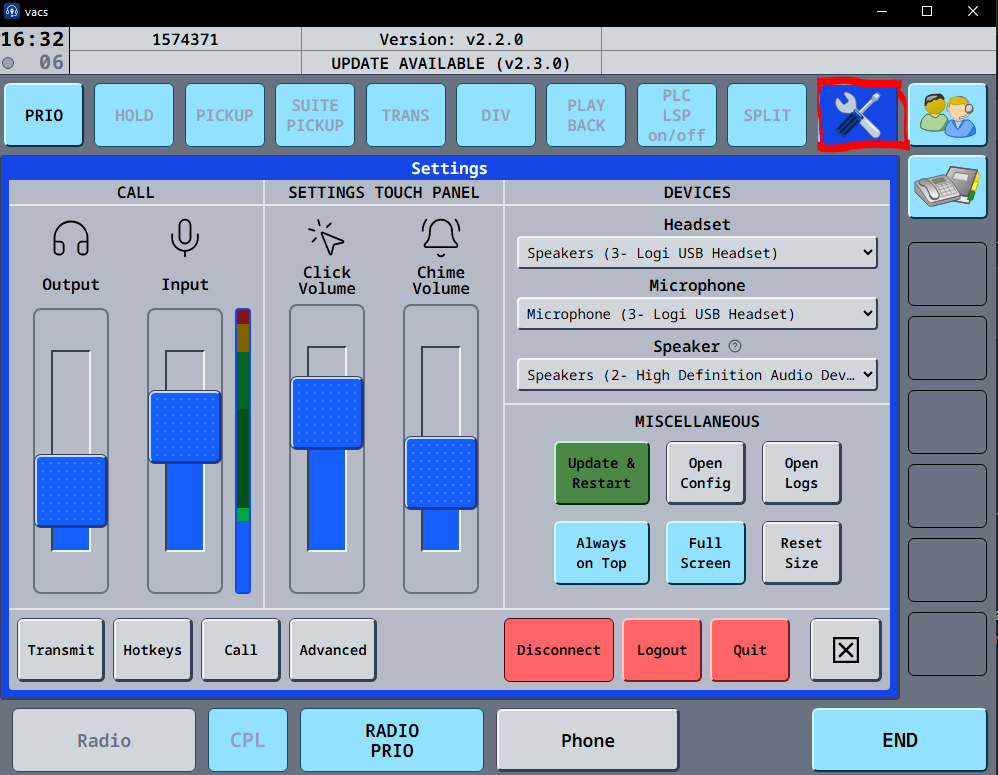
Configuration
Audio Settings:
- Headset / output device
- Microphone / input device
- Speaker / notification device (optional, for ringtone and UI sounds)
- Output and input volume levels
- Notification (chime) and click sounds
Transmit:
- Voice Activation
- Push-to-talk
- Push-to-mute
- Radio Integration
Hotkeys:
- Push-to-talk keys
- Transmit priorities
- Call-related shortcuts
- Other operational hotkeys
Transmit Modes
Voice Activation:
- The microphone remains unmuted.
- You can toggle the RADIO PRIO button to mute your microphone.
In this mode, your microphone is permanently active, unless it is manually muted using the RADIO PRIO button. This allows immediate speech transmission without pressing a key.
Push To Talk:
- The microphone is muted by default.
- Press and hold the assigned key to unmute your microphone and to speak.
Audio is transmitted only while the corresponding key is pressed.
Push To Mute:
- The microphone is unmuted by default.
- Press and hold the assigned key to mute.
This mode allows continuous transmission while providing the ability to temporarily mute when necessary.
Key Bindings
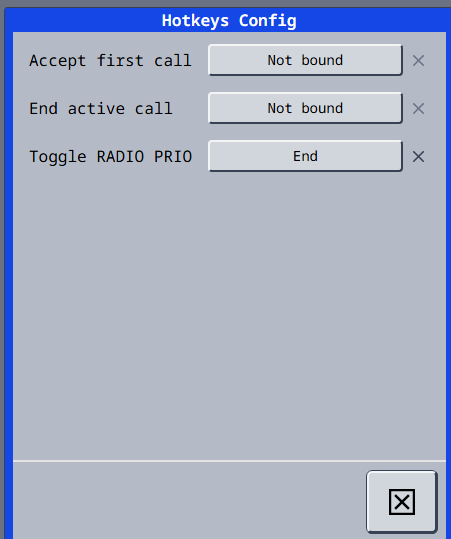
The Hotkeys Config Menu can be accessed from the settings page, by clicking the Hotkeys button.
Assigning A Keybind:
- Simply press the field showing Not bound or the relevant key binding next to the desired action.
- Press the key (or key combination) you want to assign.
- The field will update to display the selected binding.
Clearing a bind
Clicking the X button removes the key bind
Miscellaneous Settings
- Check For Updates
- Open Config: Opens the local configuration directory used by vacs.
- Always on Top: This ensures that the VACS window is always visible
Note
This directory contains different configuration files for vacs, which should not be modified under normal circumstances. This is primarly intended for testing or troubleshooting purposes.
Session Control
- Disconnect: Disconnects an active vacs connection without closing the application.
- Logout: Logs you out of your connected VATSIM account within VACS.
- Quit: Closes the vacs application entirely. All active connections will be terminated.
Note
After logging out, logging into your VATSIM account will be nessecary before using VACS again.
Interface
Top Status Bar
The top status bar contains the following:
- Current time
- VATSIM CID
- Current logged on station
- Current VACS Version
- Update notification if youre not using the latest version
A small indication shows current call status:
Green -> Ready
Orange -> Connected
Gray -> Not Connected
Function Buttons
The upper row contains operational controls:
- PRIO
- HOLD
- PICKUP
- SUITE PICKUP
- TRANS
- DIV
- PLAYBACK
- PLC LSP on/off
- SPLIT
Of these buttons, currently only the PRIO button is simulated.
Info
For clarity within this documentation, the following terms are used:
- Direct Access Page → The central station grid containing all available coordination positions.
- Direct Access Key → An individual station button within the Direct Access Page used to initiate or receive calls.
These terms are used consistently throughout the documentation.
The direct access page contains all available coordination stations.
Each title represents one station and my appear in different states:
- Button that does not reference a station (disabled button with grey text).
- Station that is online and callable (enabled button with blank text).
- Button referencing a station not currently online on vacs (disabled button with black text).
- Station currently controlled by your position (enabled button with grey text).
Bottom Control Bar
Radio
Danger
This feature is currently not implemented in the Saudi Arabian vACC
CPL
Danger
This feature is currently not implemented in the Saudi Arabian vACC
Phone
The Phone button provides quick navigation back to the main phone interface and indicates active phone communication.
Gray -> When no phone call is active, the button remains unchanged (grey).
Green -> When a phone call is active, the Phone button lights up continuously in green, matching the call display.
When clicked the button always navigates back toward the top level of the phone interface.
End
Active outgoing call -> The outgoing call is cancelled.
Active call -> The call is terminated.
Rejected / error call display -> The call entry is cleared from the display.
Inside any menu -> The interface exits the current menu.
Using VACS
Software Configuration
Before initial useage, you should configure the relevant settings of the software, such as:
- Audio Devices
- Transmit Modes
- Other Key Bindings (if used)
These settings are all explained in detail in the Settings section of the manual
Login To VATSIM
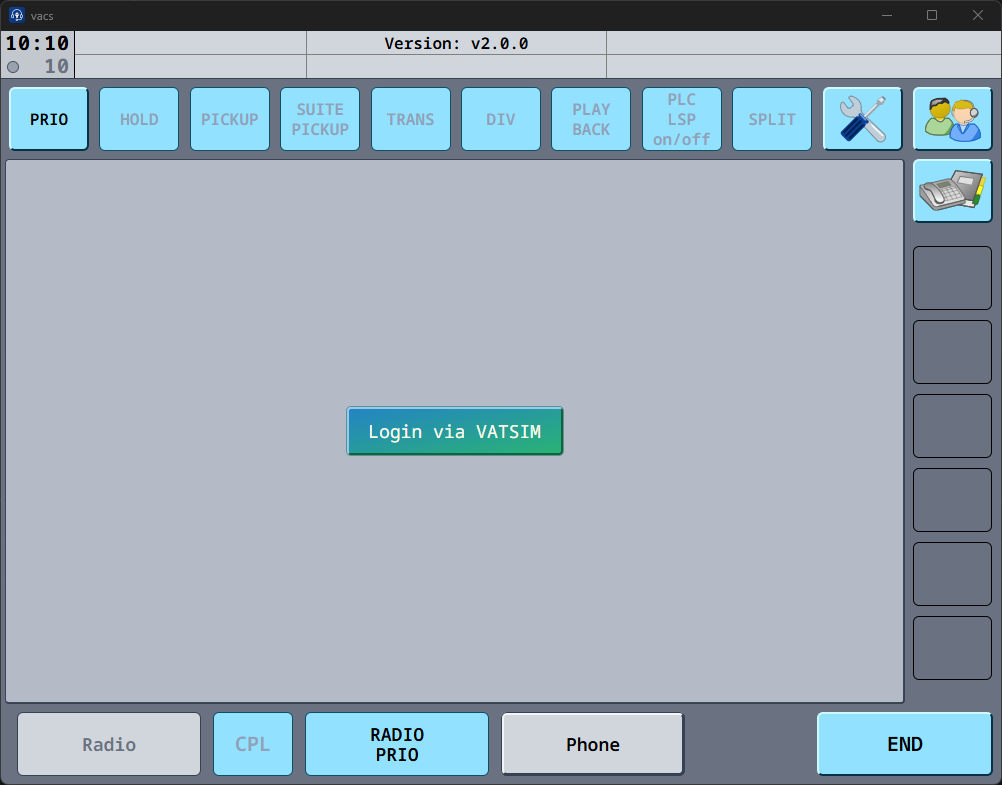
- Press Login via VATSIM
- Authenticate using your VATSIM account.
- Once completed, your VATSIM account will be connected to vacs.
Connect to VACS
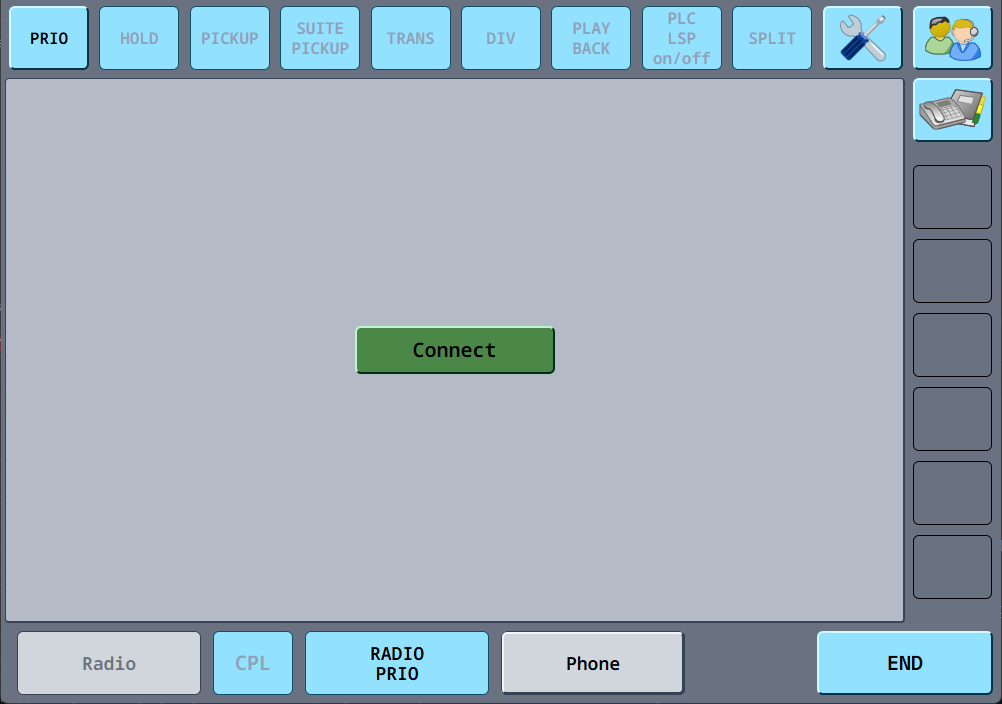
Before connecting, make sure that:
- You are connected to VATSIM
- Your primary frequency is set
Then press Connect to establish the vacs connection.
Ready For Use
Ensure:
- the software is configured
- the latest version is installed
- you are logged into VATSIM
- and connected to vacs
- you are ready to begin using the system.
Making a Call
Placing A Call
To initiate a coordination call:
- Identify the sector you want to coordinate with. Take a look at the different Direct-Access Pages (Tabs) available in the bottom bar, to find your call recipient.
- Click the corresponding Direct Access Key to initiate a call.
- If the button is active (clickable) and the text appears in black color, this sector is online on VATSIM & vacs, and is ready to recieve your call. VACS will initiate a call to the controller currently covering this sector.
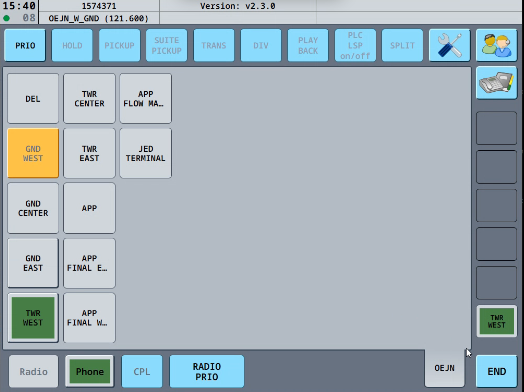
During the call setup phase (until the recipient accepts the call):
- The selected Direct Access Key indicates the outgoing call.
- The Phone button indicates that a phone call is active.
- The recieving controller will be made aware of the incoming call (visual & audible if activated).
Once the receiving controller accepts the call, the connection will be established automatically.
Call Establishment
After the recieving controller accepts the call, vacs establishes audio connection.
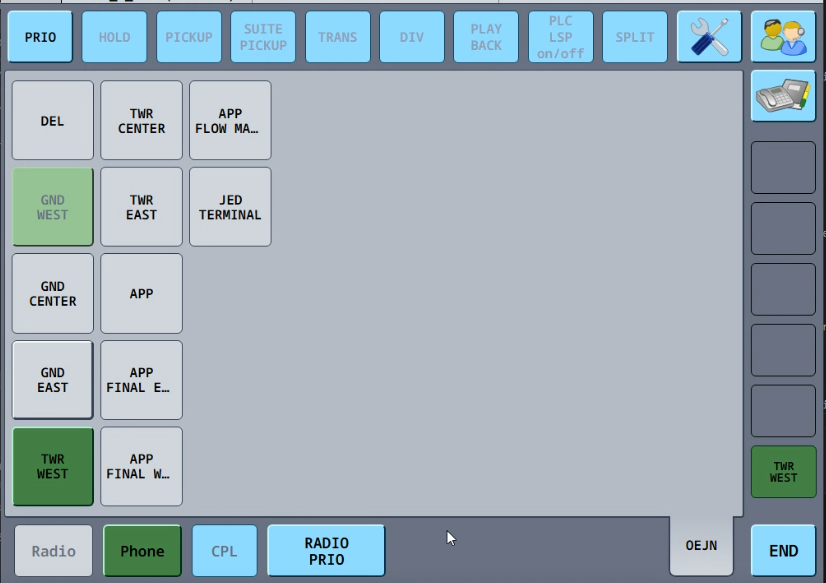
A successful connection is indicated by:
- the green connection indicator in the top status bar
- optionally an audible sound, if enabled
Selecting a Call Source
If you are covering multiple sectors simultaneously (as is often the case), VACS allows you to choose which sector appears as the caller.
The call source can be selected on the relevant Direct Access Page. The sectors, which you are covering, from the position you are logged in with, are indicated by active buttons in grey color. By clicking one of these, you define your call source:
- A single click sets this sector as the Temporary Call Source (light orange). It is then used as the call source for the next call only.
- A double click sets this sector as the Fixed Call Source (dark orange). It is then used as the call source for all calls in your session, except, if you defined a relevant Temporary Call Source.
The call source determines which sector name is shown to the recieving controller of your call. It is particularly useful, as the recipient of your call can directly identify, which precisely sector is calling.
Priority Call
A PRIO Call indicates to the reciever of the call, that the caller considers this call to be urgent. It is highlighted with a yellow border in the recievers vacs, and uses a special sound, to gain attention.
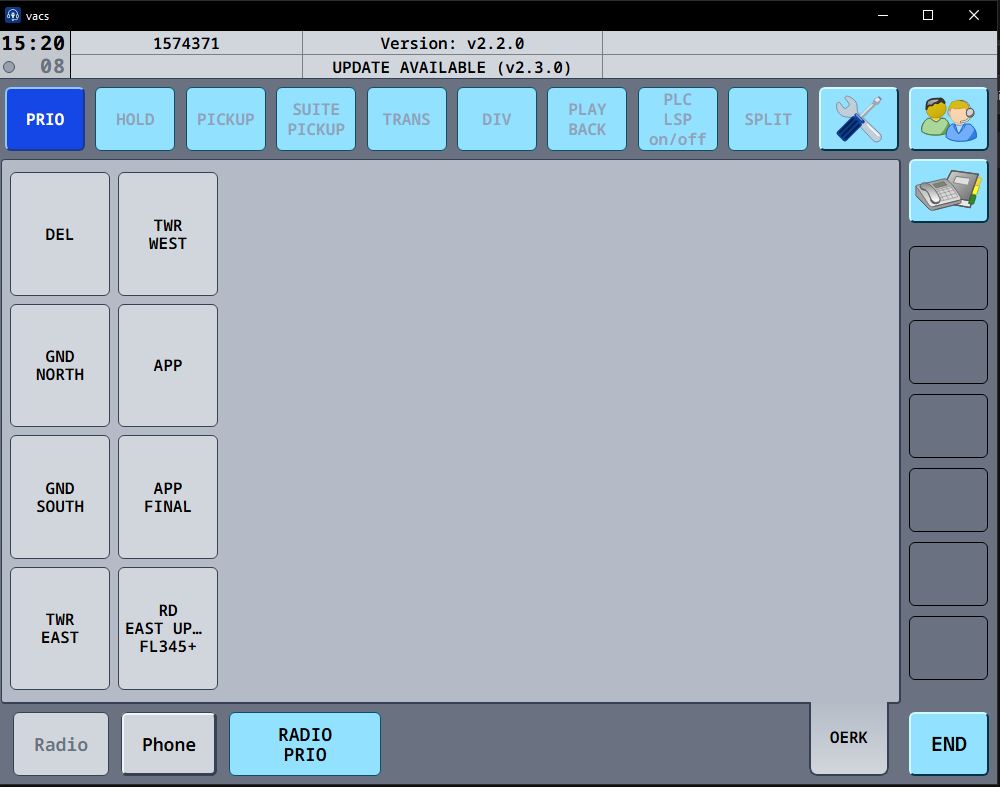
To place a PRIO call:
- Activate the PRIO button.
- Click the sector you want to call.
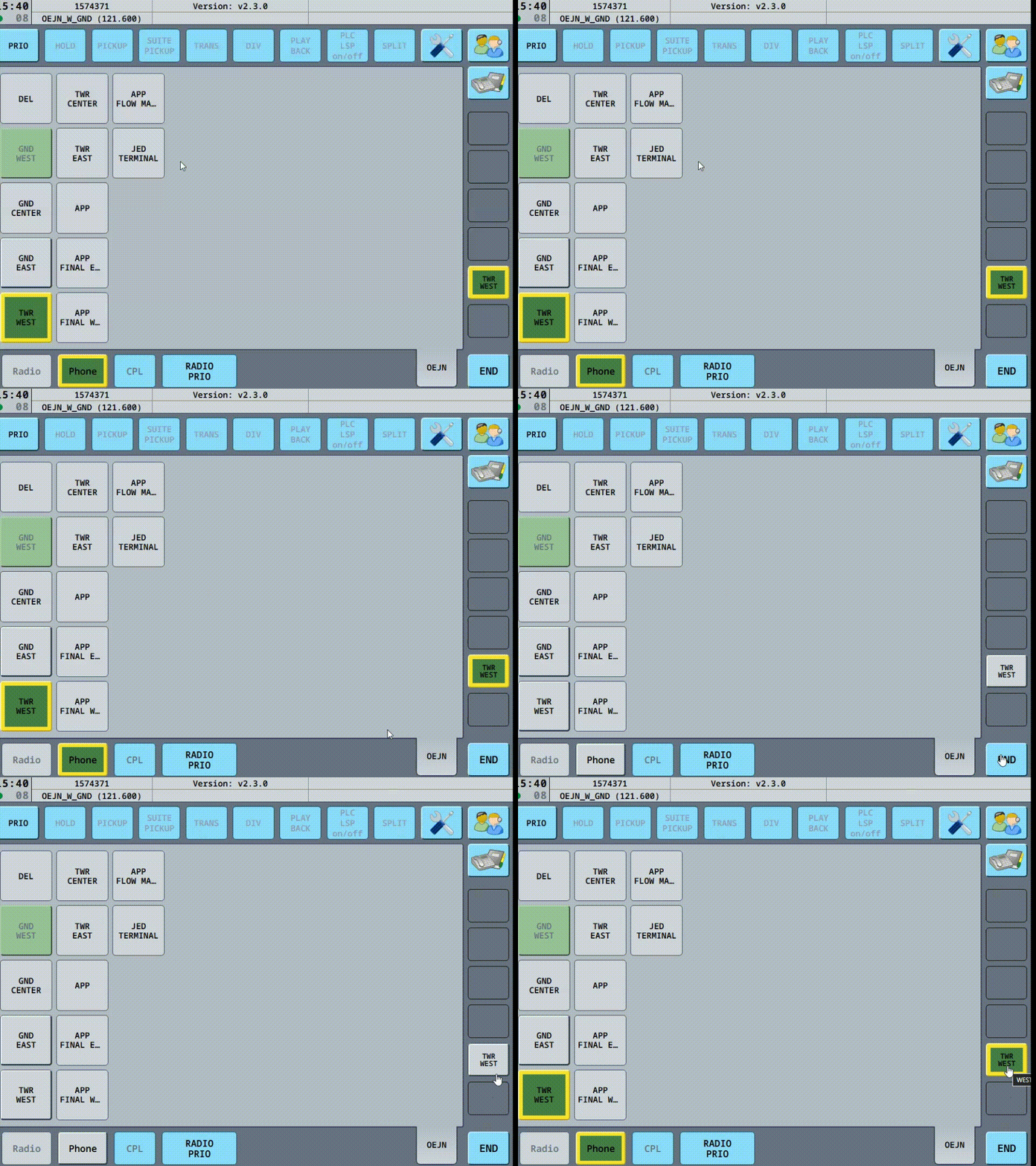
The recieving controller can detect a PRIO call using visual and audible aids. It is highlighted by a yellow border around the caller indication and alerted by a special sound for the recipient.
Transmission
How audio transmissions (frequency & coordination via VACS) behaves during a coordination call depends on your configured Transmit Mode.
Typical options include:
- Separate push-to-talk/mute keys for radio and phone.
- Shared transmission key (Radio Integration) for both communication channels.
- Voice Activation.
Your chosen configuration determines how you speak during coordination calls.
Call Errors
In some situations, a call cannot be established.
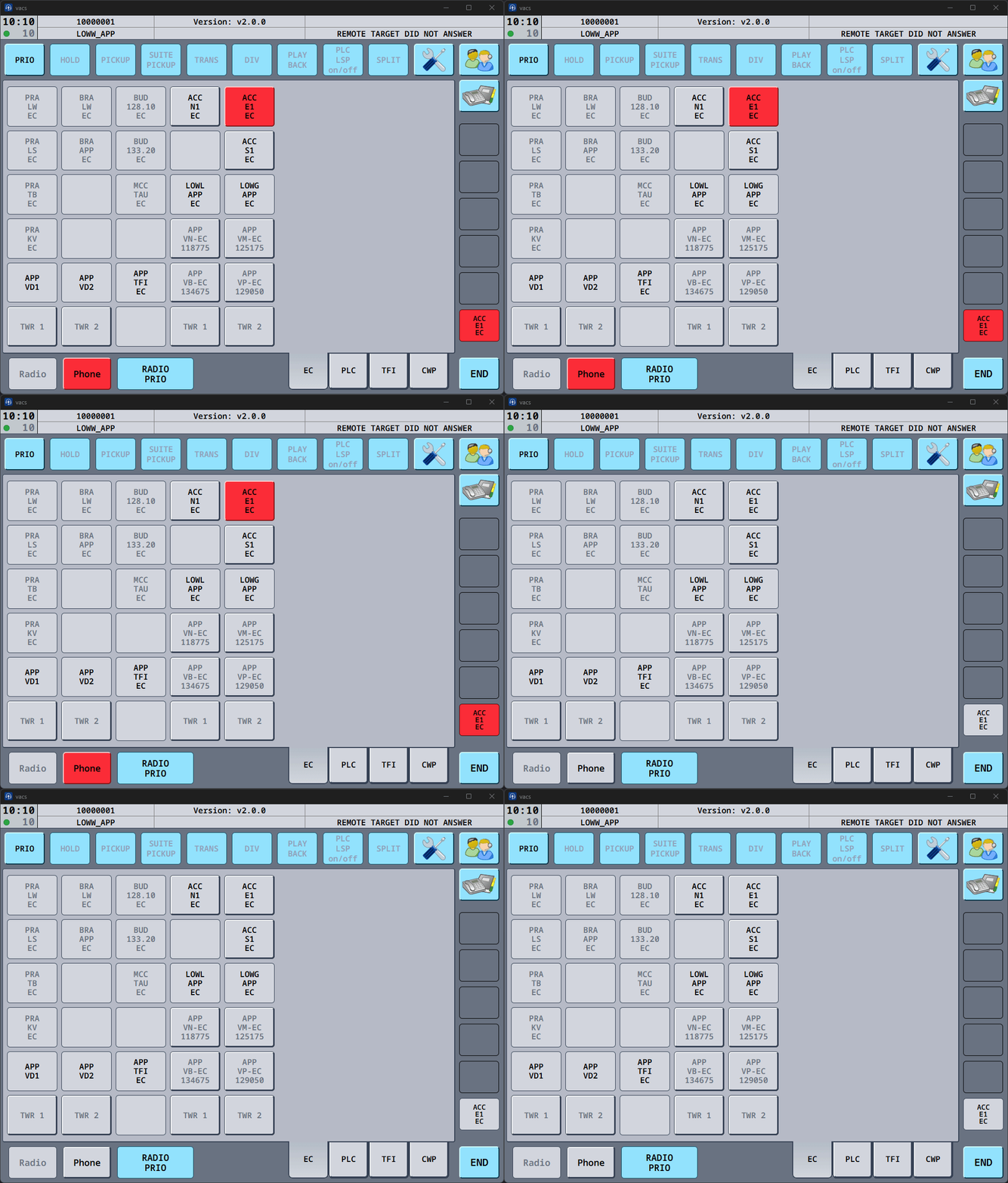
Common reasons include:
- The remote controller did not answer.
- The call was rejected.
- A technical issue occured during call establishment.
Ending A Call
To terminate an active call:
- Press the END button in the bottom control bar.
This will immediately terminate the call and return the interface to its normal state.
Incoming Call Notification
There are three types of Incoming calls. When another controller calls you, the relevant sector button will start indicating the incoming call.
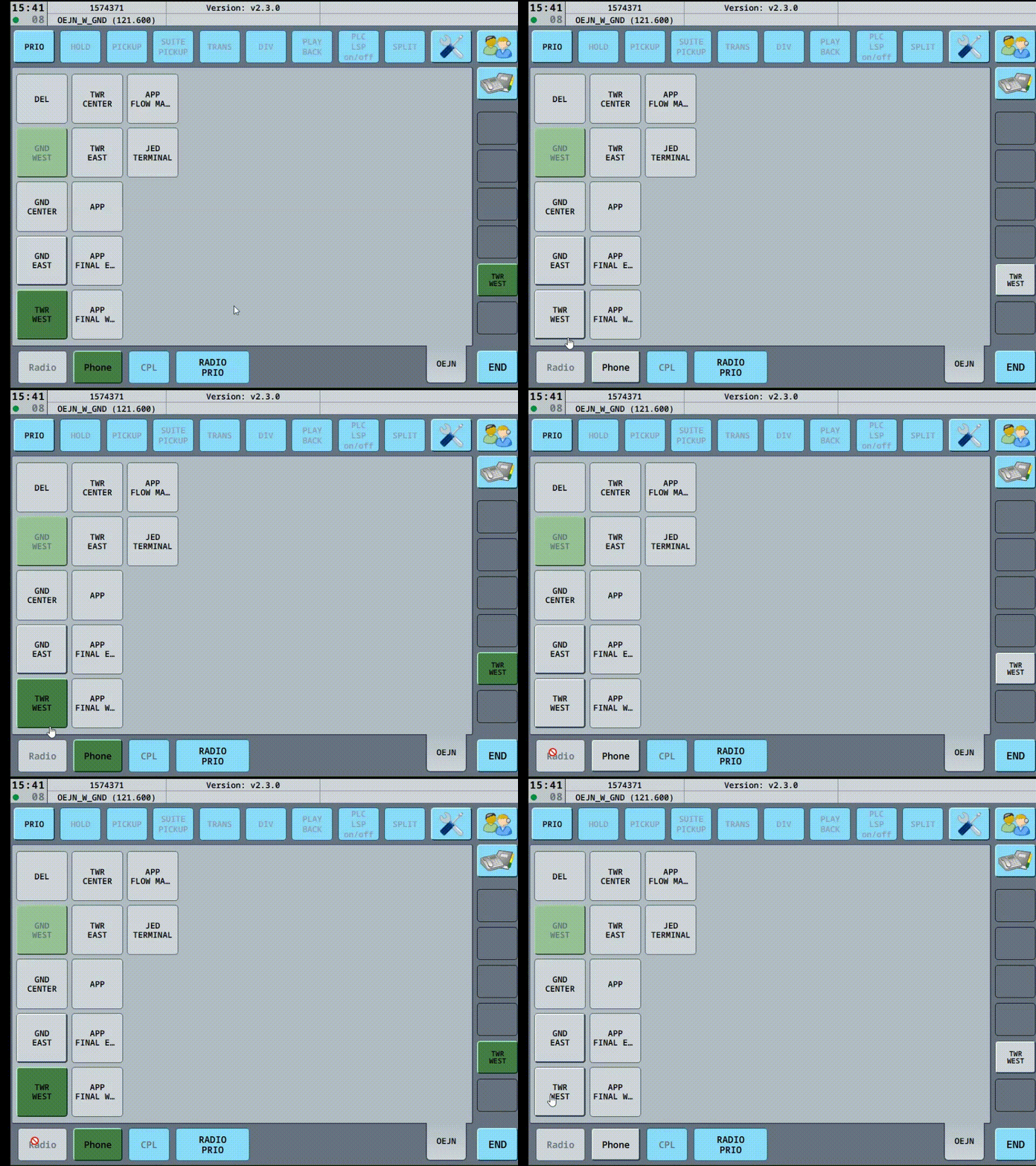
In the interface, you can see:
- Who is calling: Dark Green, flashing, button.
Multiple Incoming Calls
If several controllers attempt to contact you at the same time, vacs will display multiple incoming call indicators.
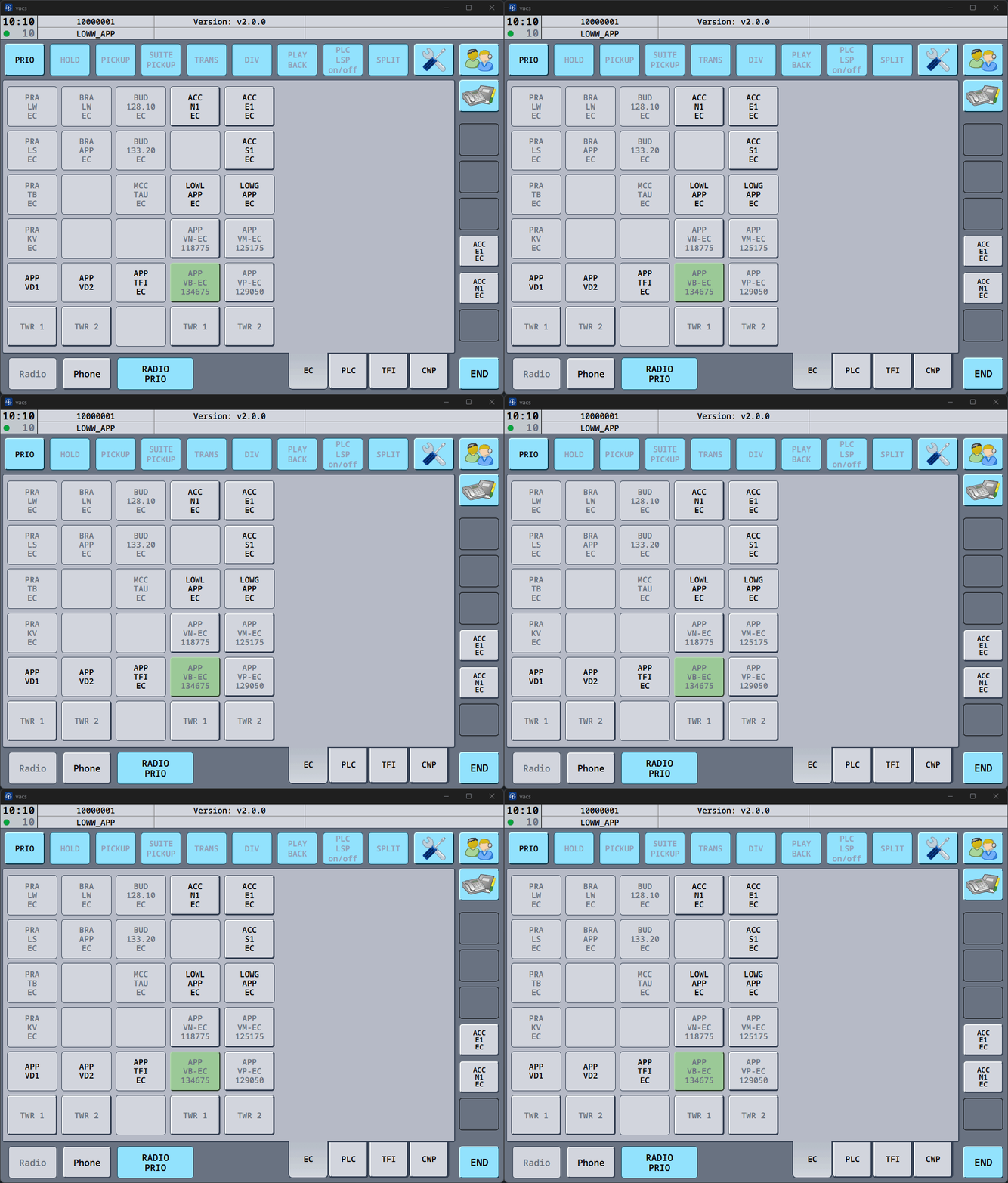
You can decide which call to accept first.
Priority Calls
Incoming PRIO calls indicate urgent coordination.
Priority calls are marked clearly (visual & audible) and should generally be handled before normal calls, as they indicate time-critical coordination.
Accept a call
To accept an incoming call, press one of the flashing green call indicators.
Once connected (call status indicator on the top left turns from orange to green and/or audible signal), the active call will be indicated in the interface.
If the call was initiated as a PRIO call, the active call will also indicate the priority status (yellow border).
Ending A Call
To terminate the call:
- Press the END button in the bottom control bar.
This will immediately terminate the call and return the interface to its normal state.